
Gitea

Enlaces
Requisitos
- Docker instalado siguiendo los pasos de instalar
- Portainer configurado siguiendo los pasos de instalar portainer.
- NGINX Proxy manager siguiendo los pasos de instalar NGINX Proxy Manager. (opcional)
- Traefik configurado siguiendo los pasos de instalar Traefik. (opcional)
Imagen
Repositorio de Docker Hub: https://hub.docker.com/r/gitea/gitea
Portainer- Nuevo «stack»
Add a new stack – Portainer Documentation
Web editor
En Portainer «Stack» agregamos nuevo usando el editor WEB pegando el contenido del fichero «docker-compose.yml» y el contenido del fichero de variables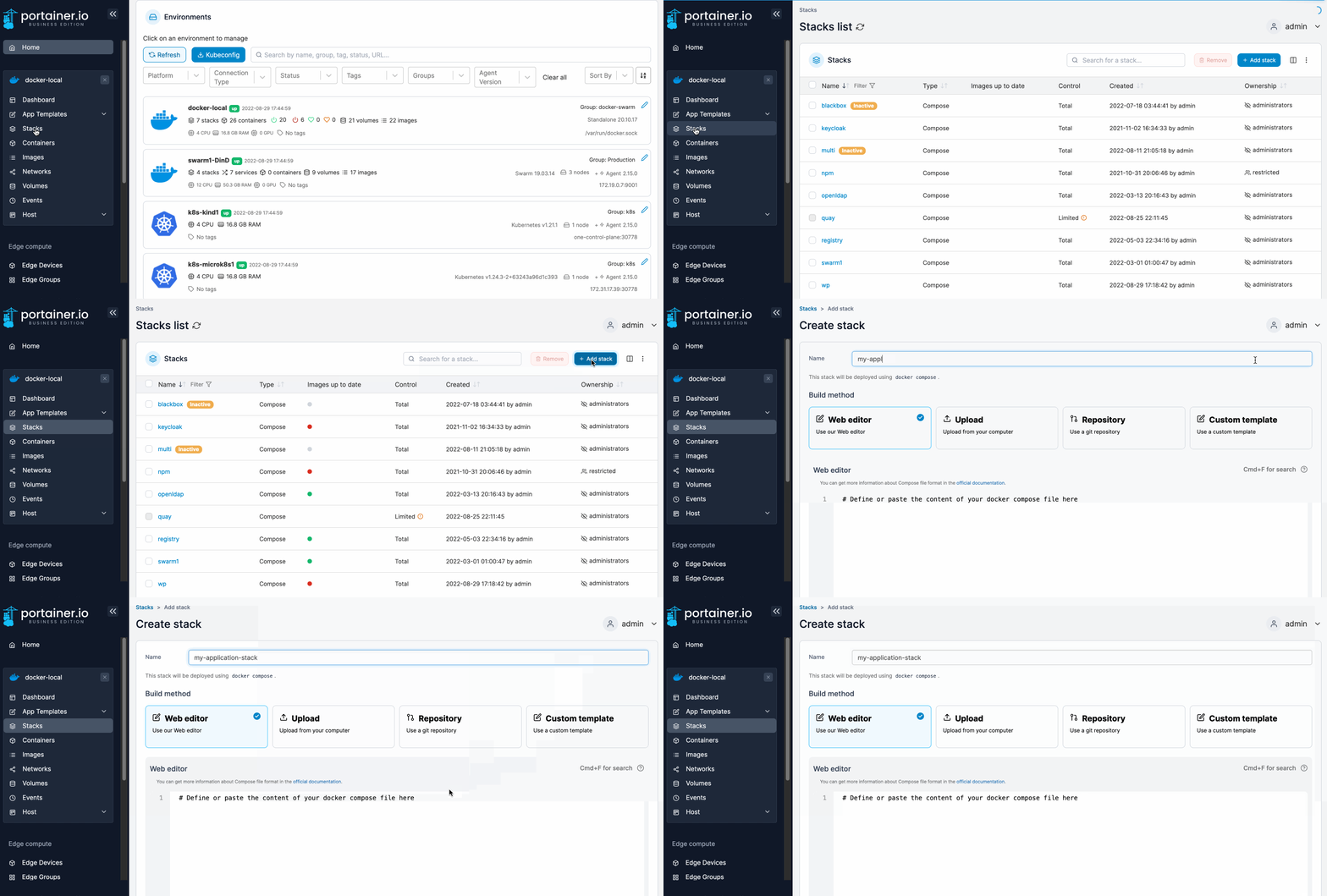
Fichero de variables
###############################################
# POSTGRES CONTENEDOR
###############################################

POSTGRES_USER=gitea
POSTGRES_PASSWORD=CAMBIA_ESTA_PASSWORD
POSTGRES_DB=gitea

###############################################
# SERVER / GENERAL
###############################################

GITEA__server__DOMAIN=gitea.miempresa.local
GITEA__server__ROOT_URL=https://gitea.miempresa.local/
GITEA__server__SSH_DOMAIN=gitea.miempresa.local
GITEA__server__START_SSH_SERVER=true
GITEA__server__SSH_PORT=2222
GITEA__server__HTTP_PORT=3000

###############################################
# DATABASE (Gitea -> Postgres)
###############################################

GITEA__database__DB_TYPE=postgres
GITEA__database__HOST=postgres:5432
GITEA__database__NAME=gitea
GITEA__database__USER=gitea
GITEA__database__PASSWD=CAMBIA_ESTA_PASSWORD

###############################################
# POSTGRES CONTENEDOR
###############################################

POSTGRES_USER=gitea
POSTGRES_PASSWORD=CAMBIA_ESTA_PASSWORD
POSTGRES_DB=gitea${POSTGRES_PASSWORD}

###############################################
# SECURITY
###############################################

# Genera ambos (ejemplo en Linux):
#   openssl rand -hex 32
GITEA__security__SECRET_KEY=CAMBIA_SECURITY_KEY
GITEA__security__INTERNAL_TOKEN=CAMBIA_INTERNAL_TOKEN

# Cambiar a "true" cuando hayas terminado el wizard inicial
GITEA__security__INSTALL_LOCK=false


###############################################
# OPENID CONNECT (Entra ID habilitado)
###############################################

GITEA__openid__ENABLE_OPENID_SIGNIN=true
GITEA__openid__ENABLE_OPENID_SIGNUP=false

# Opcional: desactivar registro local
GITEA__service__DISABLE_REGISTRATION=true
Fichero docker-compose
services:
  gitea:
    image: gitea/gitea:1.22.0-latest-rootless
    container_name: gitea
    restart: always
    depends_on:
      postgres:
        condition: service_healthy
    ports:
      - "2222:2222"        # SSH para repos desde fuera
    env_file:
      - stack.env
    volumes:
      - data:/var/lib/gitea
      - config:/etc/gitea
    networks:
      - default
      - proxy

  postgres:
    image: postgres:18
    container_name: gitea-postgres
    restart: always
    env_file:
      - stack.env
    volumes:
      - db:postgresql:/var/lib/postgresql
    healthcheck:
      test: ["CMD-SHELL", "pg_isready -U ${POSTGRES_USER:-gitea}"]
      interval: 10s
      timeout: 5s
      retries: 5
    networks:
      - default

volumes:
  data:
  config:
  db:postgresql:

networks:
  default:
    name: gitea_net        # red interna Gitea <-> Postgres
  proxy:
    external: true         # compartida con Nginx Proxy Manager
En este punto ya puedes ir a http://my.docker.ip.address
Publicando detrás de un proxy
Crear registro DNS
En el proveedor que aloja el servidor DNS público, crear un registro DNS que resuelva la IP pública que llega al Proxy hacia un nombre del estilo "host.domain.com"
NGINX proxy
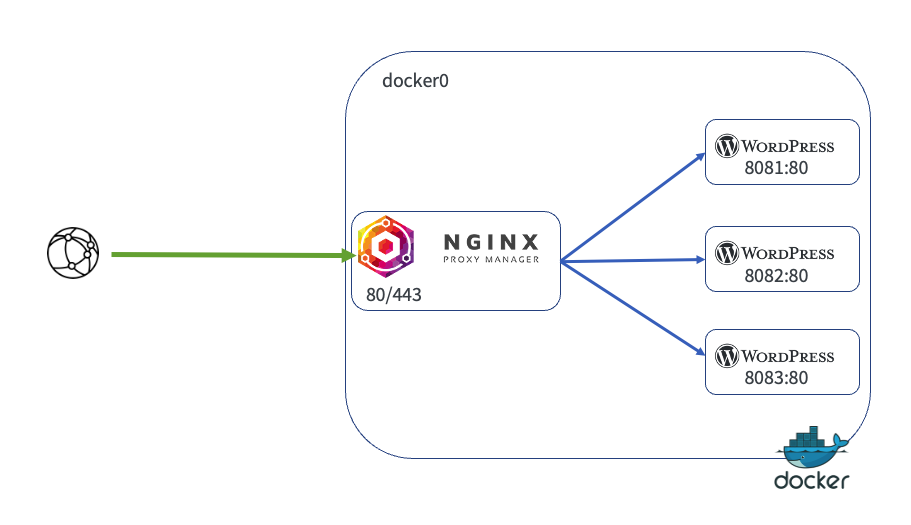
Para publicar el contenedor detrás de NGINX proxy, como el stack está en la red proxy solo deberás crear un nuevo host
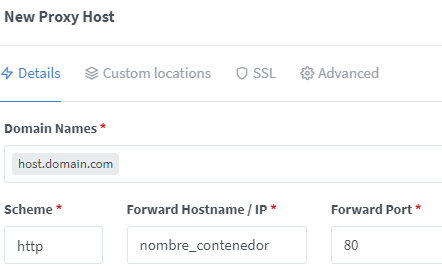
Crear un nuevo "proxy host"
Añade un nuevo proxy host con el nombre de dominio creado en el paso anterior redirigido hacia el nombre del contenedor y el puerto que use:
Traefik
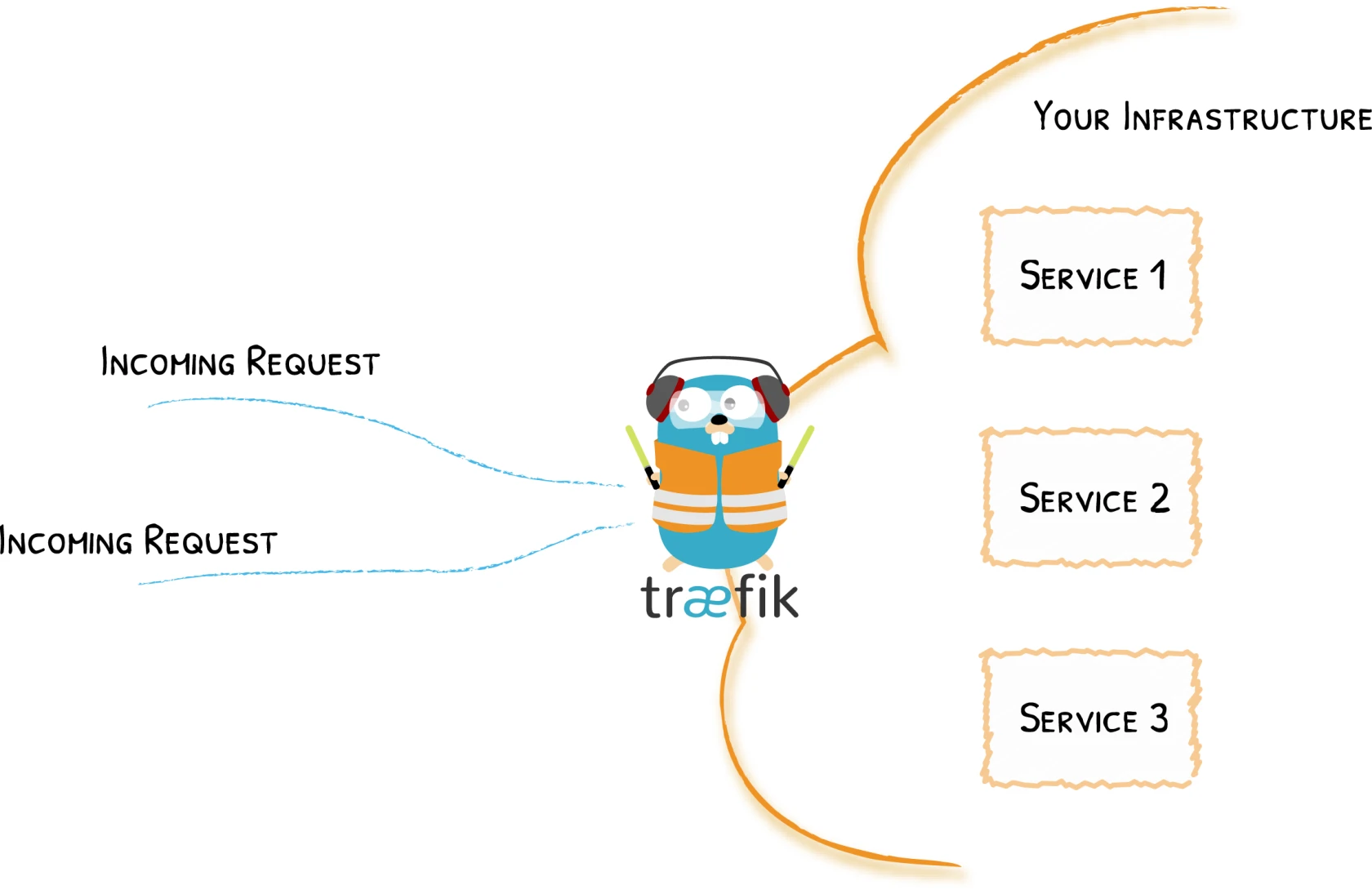
Para publicar el contenedor detrás del proxy Traefik, deberás añadir al fichero docker-compose.yaml las siguientes etiquetas al servicio app
    labels:
      - traefik.enable=true
      - traefik.http.routers.app.rule=Host(`app.dominio.com`)
      - traefik.http.routers.app.tls=true
      - traefik.http.routers.app.tls.certresolver=letsencrypt
      - traefik.http.services.app.loadbalancer.server.port=80
Solo IPs Privadas
Para permitir el acceso solo desde redes privadas, modifica en la sección de «labels» del fichero docker-compose.yml, para añadir la siguiente linea y configurar el «middleware» «privateIPs@file»
- traefik.http.routers.app.middlewares=privateIPs@file